
Video Shooting Essentials
Date: 2026-02-19
video shooting essentials
screen shots | [VIDEO] mode, Video menus
![[PHOTO]メニューから[VIDEO]を選択で動画撮影へ](/images/how-to-use/video-shooting-essentials/video-shooting-menus-01.webp)
[PHOTO]メニューから[VIDEO]を選択で動画撮影へ

Select Video Format: Video Preset
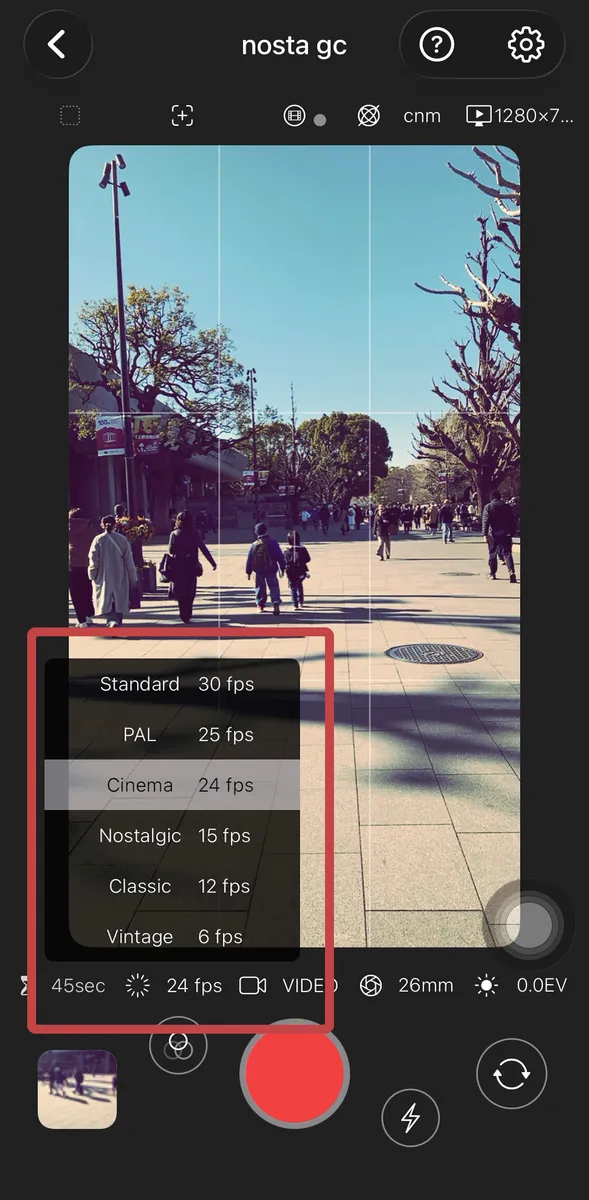
Select FPS
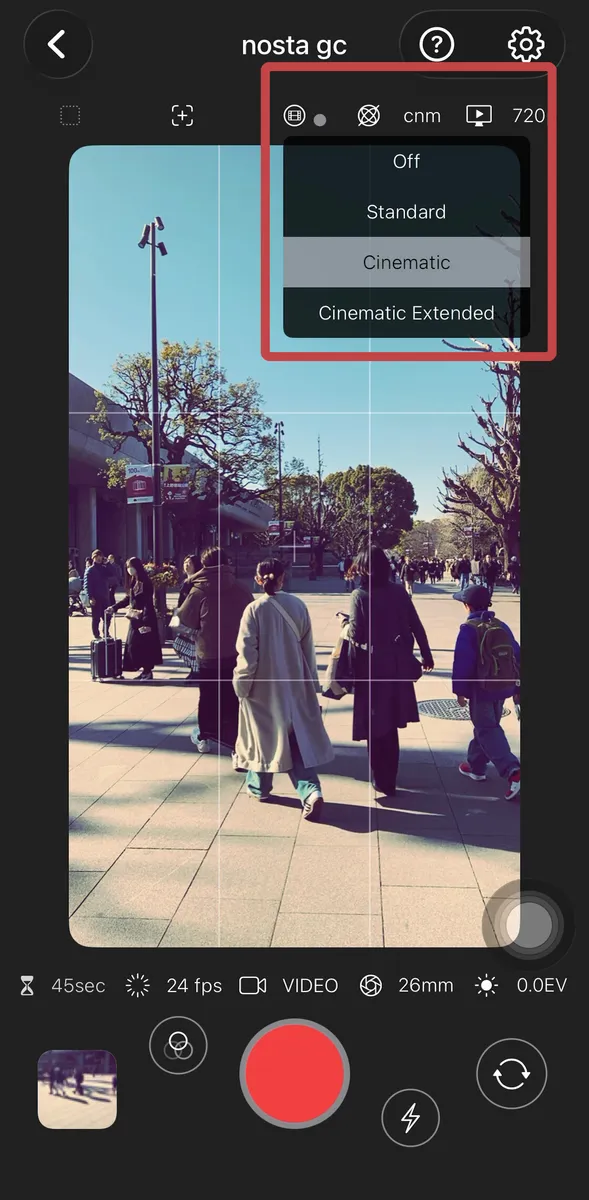
Select Stabilization
Video Format
- 4K: 3840x2160 - Ultra-high-definition 4K quality.
- 1080p: 1920x1080 HD - Standard HD. Looks sharp even on large screens.
- 720p: 1280x720 HD - Sufficient quality for iPhone viewing with a smaller file size.
- VGA: 640x480 - Perfect for retro videos; captures the aesthetic of old digital compact cameras.
- CIF: 352x288 - Vintage feel; pairs well with low FPS settings.
- Choose from a variety of formats, from high-resolution 4K to retro low-resolution recording.Please try combining with FPS and Image Stabilization settings.
FPS Frames Per Second
- 30 fps: Standard
- 25 fps: PAL (For PAL region frequencies)
- 24 fps: Cinema (Standard for films)
- 15 fps: Nostalgic (Old video camera style)
- 12 fps: Classic (Old digital compact camera feel)
- 6 fps: Vintage (Flip-book style footage)
- Lower fps allows for nostalgic, retro video recording.As file size changes with the fps, lower settings are also recommended for quick video memos.
Stabilization
- Off: Video stabilization is off
- Standard: Standard
- Cinematic: Record smooth video. The field of view becomes slightly narrower. Available with HD formats.
- Cinematic Extended: Record smooth video even with movement, similar to action mode. The field of view becomes slightly narrower. Available with HD formats.
- -
- * Some combinations may not be available depending on your iPhone model.
- Please try various combinations of video formats and FPS.
Video Shooting & Preview
Launch umi from your widgets

Tap the red button to start recording.
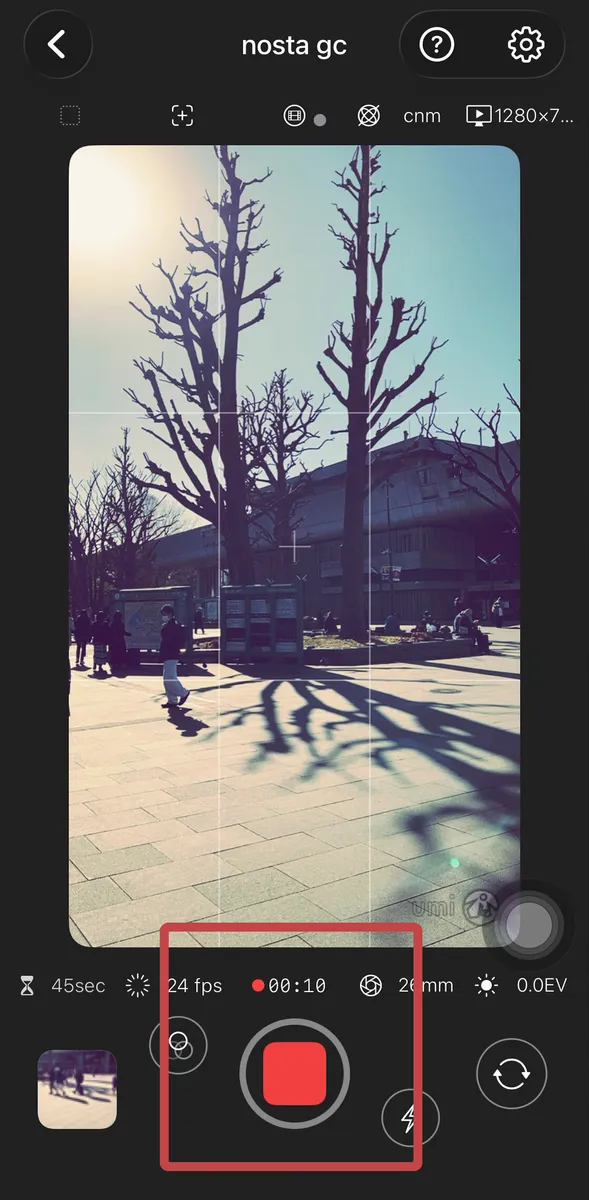
Recording time is displayed during capture; use the square button to stop.
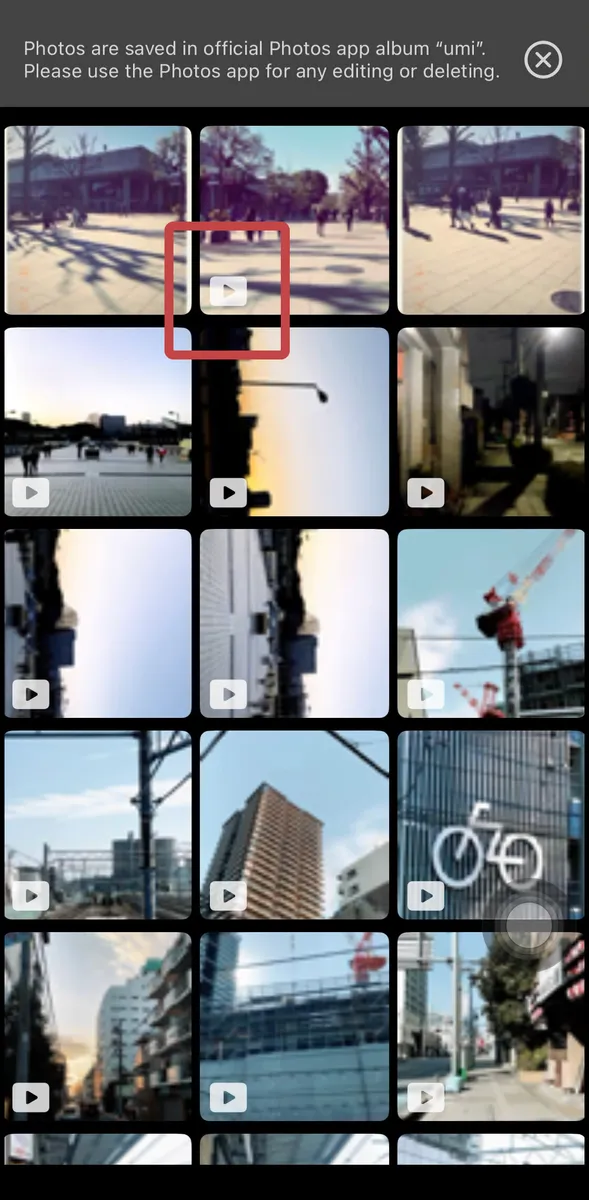
Check previews in the album; video files are marked with an icon.
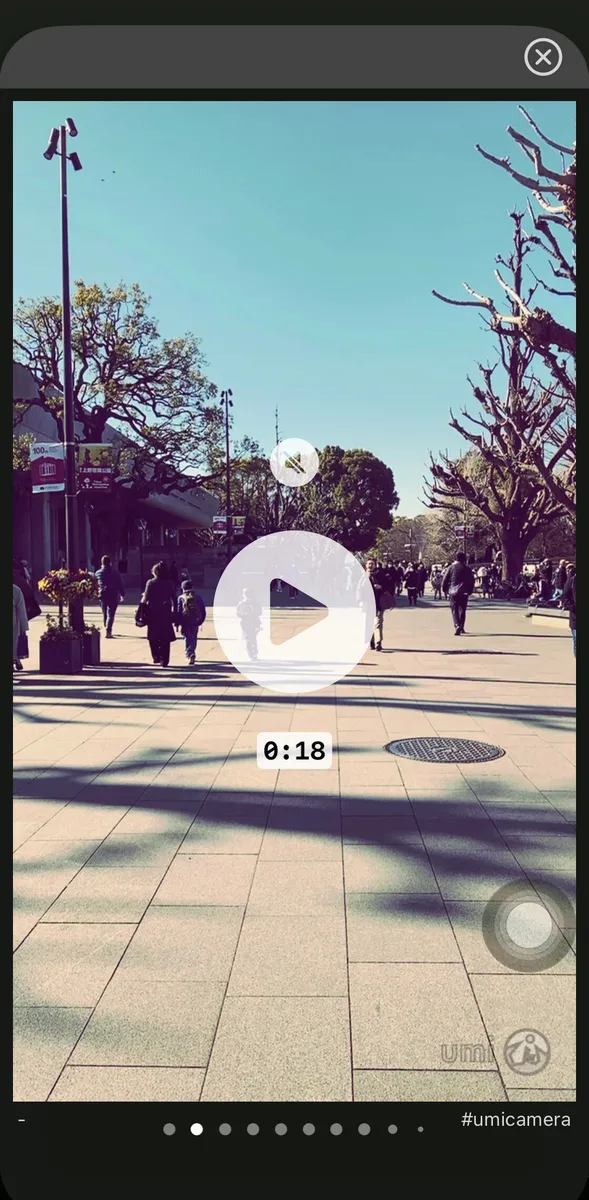
Tap the play button to start playback. Previews are muted by default.
How to Video Shooting and Preview
- Tap the red button to start recording.
- Recording time is displayed during capture; use the square button to stop.
- Check previews in the album; video files are marked with an icon.
- Tap the play button to start playback. Previews are muted by default.